


WICShopper
4.85.72K Reviews
App Specs
- Version
- 5.2.27
- Updated On
- License
- Free
- Downloads
- 1,000,000+
- Developer
- JPMA, Inc
- Categories
- Shopping
- Platform
- Android, iOS
Screenshots
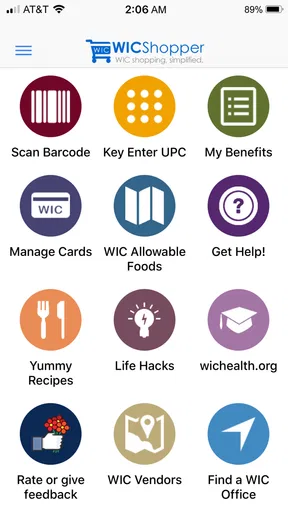
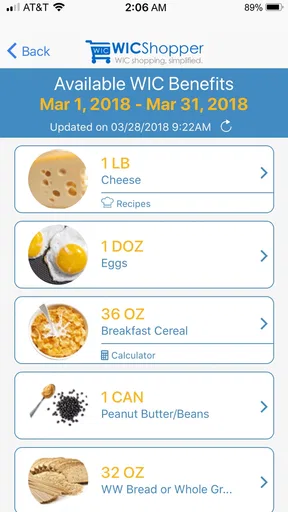
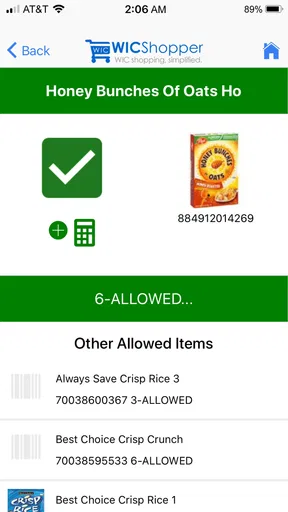
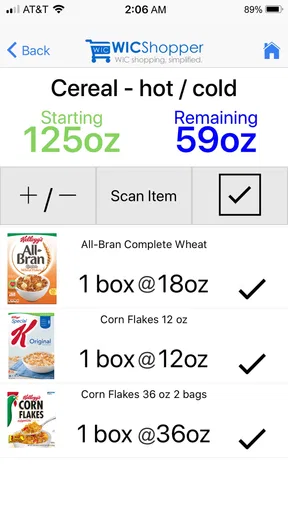
 Analysis by AppCompare
My best advice for using WICShopper is to treat it as a shopping aid, not as a substitute for checking what your household can buy. WIC shopping can involve benefit balances, eligible foods, and store choices all at once; having those tasks in one place can make a trip easier to plan. The app is free, and JPMA, Inc develops it for people who want practical help using WIC benefits. I find its strongest value is reducing uncertainty before and during a grocery run, especially when I build a small routine around it rather than trying to do everything at the checkout.
Building a reliable WIC shopping routine
I’d make the routine dependable by deciding at home which questions the app needs to answer on this trip, rather than opening every tool by default. A quick benefit check, a focused list, and scanning only unfamiliar packaged items can keep the store visit moving while leaving room to verify a doubtful choice. That habit also makes it easier to see which settings or personal preferences are worth checking before the next shop.
Start at home, then use the app in the aisle
Before leaving, I would check the benefit information and make a focused list of the foods needed for the next few meals. That turns the app into a planning tool instead of something I open only when a purchase is already in question. A useful habit is to group list items by the way you shop—such as produce, dairy, or pantry goods—so you can move through the store without repeatedly retracing your steps. The list is most helpful when it reflects actual meals and household needs, not every eligible item that happens to catch your eye.
At the store, the barcode scanner can help with a specific uncertainty: whether the packaged item in your hand is recognized as WIC-approved. I would scan before putting several similar products in the cart, especially when choosing among brands or package variations. If the result is not what you expected, pause and compare the item with the approved-food information rather than assuming that a similar-looking product will qualify. This small check can save a frustrating conversation at checkout, though it is still sensible to keep a backup choice in mind.
Use benefit checks to make decisions, not just to browse
A balance snapshot is more useful when it changes what you do next. If you are planning a second shopping trip, check what remains before buying duplicates; if you are shopping for a particular recipe, compare the ingredients with the benefits you intend to use. That is a simple way to avoid filling a cart with eligible foods that do not fit your immediate plans. I would also make a quick review part of the trip’s end, so the next list starts with a clearer picture of what is still available.
There is a practical distinction between knowing that a food is generally approved and knowing that it works for your current benefit situation. The app can help with the first through its food information and scanner, while the benefit snapshot helps with the second. Keeping those checks separate makes the process easier to reason through: confirm the item, then consider whether it belongs on this trip’s plan. That is more dependable than treating one successful scan as a promise that every related product or purchase will be covered.
Set up habits around your own store and household
The store locator is useful when you need to find a WIC-approved retailer, but I would check the location before building an unfamiliar trip around it. For regular errands, save mental effort by choosing a store you already know and keeping a short repeatable list of staple foods. When travelling or visiting a different area, use the locator as a starting point, then make sure the destination suits the rest of your plans. A nearby result is not automatically the best stop if it adds a long detour or does not carry the items you need.
Worth Reading Before You Choose

EA SPORTS FC Mobile 26 Is a Bigger Football Game, but It Takes Time

Flipboard Shows What News Apps Must Do Beyond the Feed

Switching to Android Auto Means Rethinking Your Driving Routine

Google Calendar Makes a Crowded Week Easier to Manage

Ludo King Makes the Most of the Minutes Between Plans

Baby Panda World Brings Quick Play to Modern Phones, but Its Game Library Feels Busy
Households also differ in who does the shopping. If one person plans meals and another makes the store run, a clear list can prevent last-minute substitutions and duplicated purchases. I would agree on the list before leaving and note which items are priorities, rather than relying on the shopper to remember a full conversation. The app’s list and food-reference tools can support that routine, but the household still has to decide what to buy and communicate any changes.
Make recipes and lists serve the same plan
The recipe section is most useful when it solves a real planning problem: what to cook with foods the household already enjoys, or how to turn a few staples into a meal. I would browse it before shopping, then add only ingredients that make sense for the week. That keeps recipe inspiration connected to the list instead of turning it into a separate browsing session. A recipe can suggest an idea, but it should not dictate the purchase if the ingredients do not match your benefits, budget, or preferences.
A helpful pattern is to choose a couple of meals first, check the ingredients against the approved-food information, and then build the list around what is missing. If a recipe calls for an item you are unsure about, use the scanner or food list when you are choosing it in the store. This is a more deliberate workflow than scanning every item in sight, and it makes the app’s separate tools feel like parts of one practical routine.
Know where convenience ends
Barcode scanning is a useful check, not a reason to stop paying attention to the exact product and your benefits. Packaging can look almost identical across variations, so I would scan the item actually going into the cart rather than a similar one beside it. Store information also has limits as a planning shortcut: a retailer being listed does not tell you whether every item on your list is currently available. For a tight schedule, a quick call or a backup store may be more reliable than assuming the trip will go exactly as planned.
The app is less compelling if you do not use WIC, since its central tools are built around WIC shopping rather than general grocery budgeting or broad price comparison. If your main goal is to compare prices across retailers, a regular shopping or grocery app may fit better. Likewise, someone who prefers to keep all planning on paper can use a handwritten list, although they will lose the convenience of checking food information and scanning products in the same place. I see WICShopper as a focused companion, not an all-purpose replacement for every shopping tool.
Who benefits most from a repeatable workflow
I would recommend the app most to WIC participants who are still learning which foods qualify, shoppers who occasionally visit unfamiliar stores, and anyone who wants a clearer routine for checking benefits and planning meals. It may be especially useful when a family member shares shopping duties, because a list can make the handoff more concrete. The app is free and rated for Everyone; its public reception is strong, with an average rating of 4.8 from around 108,000 ratings. Those figures offer context, but the deciding question is whether its WIC-specific tools match how you shop.
WICShopper has been available since January 11, 2013, and its current version is 5.2.26. It has over one million installs, and the app supports devices running Android 8.0 or later. Those details make it easy to judge whether it fits your device, but they do not change the day-to-day test: can you use its balance view, food references, scanner, locator, list, and recipes to make your own trip less uncertain? For many WIC shoppers, that focused combination is more relevant than a general grocery app’s broader but less tailored features.
My first grocery run with it
Imagine I am heading to the store after work, with little time to decide what to make for dinner. At home, I check the benefits view, pick a meal idea, and add the missing ingredients to a short list. In the aisle, I scan a packaged item whose eligibility I am unsure about, then compare the result with the food information before choosing it. If the preferred option is not available, I can use the list to remember the other needs instead of improvising the whole trip. That is where the app feels most useful: it gives me a sequence of small checks rather than asking me to hold every detail in my head.
The same routine also shows what it cannot do for me. I still need to choose meals my household will eat, judge whether a store is convenient, and make a backup plan when a product or location does not work out. The scanner does not replace careful selection, and recipes do not automatically turn into a suitable shopping plan. I appreciate the app most when I use it to answer narrow questions and make the next decision, not when I expect it to manage the entire grocery trip.
What to expect when choosing it
Compared with a standard grocery list app, WICShopper is more specialized: its useful difference is the connection between WIC food information and shopping tasks. A general list may be quicker for someone who only wants reminders, and a store’s own app may be better for checking its inventory or prices. But those alternatives do not necessarily offer the same WIC-centered workflow. If your main difficulty is identifying eligible items and organizing a benefit-focused trip, this app is the more relevant place to start; if your priority is coupons, price tracking, or delivery, you may want another tool alongside it.
One question people often have is whether they must scan every item. I would not. Scanning is best reserved for products where eligibility is genuinely unclear; familiar items can stay on the list without turning the whole shop into a series of checks. Another practical question is whether the locator guarantees a convenient shopping experience. I would use it to identify possible retailers, then choose based on route and the needs of the trip. The app can narrow decisions, but it cannot make every store or product equally suitable.
It is also reasonable to wonder whether the recipes are enough to plan meals by themselves. I would treat them as inspiration, then check ingredients and household preferences before adding anything to the list. And if another person shops for you, the clearest approach is to agree on priorities before the trip rather than assuming the app will explain every preference. These habits are modest, but they make the tools easier to use consistently and reduce avoidable confusion.
First impressions and setup
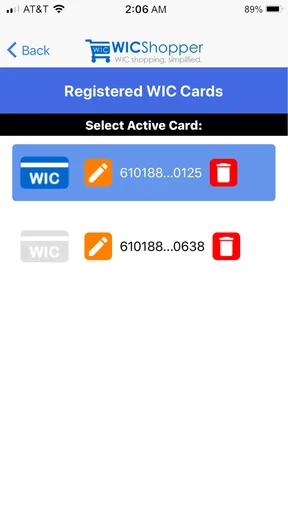
When I first opened the app, I was greeted by a clean and simple interface. No unnecessary frills, just straight to the point. Setting it up was a breeze. All you need is your WIC card number, and you're good to go. The app is available for both Android and iOS, so no one's left out. Plus, it's free, which is always a win in my book!
Navigating the Features
Once you're in, the home screen gives you a snapshot of your benefits, including what’s been used and what’s remaining. It's like having a personal assistant keeping track of everything. One of my favorite features is the barcode scanner. Just grab an item off the shelf, scan it, and boom – it tells you if it’s WIC-approved. No more guesswork or awkward moments at the checkout line.
Another neat feature is the store locator. Whether you’re at home or traveling, finding a nearby WIC-approved store is just a tap away. It uses your location to suggest stores, making it super convenient.
Shopping Lists and More
Creating a shopping list has never been easier. You can add items manually or scan barcodes to add them directly from the store. It’s like having a virtual shopping assistant. The app also provides a list of WIC-approved foods, which is pretty handy when planning meals.
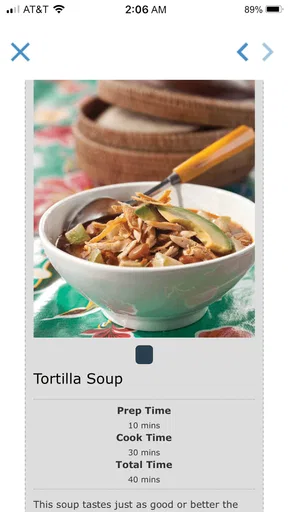
Oh, and let's not forget the recipe section. If you’re ever stuck on what to cook, this feature comes to the rescue with WIC-friendly recipes. It’s a lifesaver for those days when creativity just isn’t flowing.
User Experience
Using WICShopper feels seamless. It’s user-friendly, and even if you’re not tech-savvy, you’ll find your way around easily. The app runs smoothly without any hiccups, which is a huge plus. The developers clearly put a lot of thought into the user experience, making it accessible for everyone.
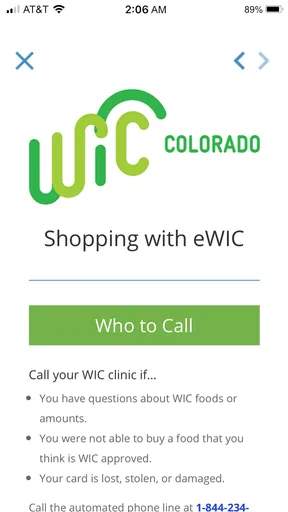
In terms of support, the app offers a helpful FAQ section and contact support in case you run into any issues. Although I didn’t have to use it, it’s nice to know help is just a click away.
Final Thoughts
In conclusion, WICShopper is a game-changer for anyone utilizing WIC benefits. It simplifies the shopping process, keeps you organized, and ensures you’re making the most of your benefits. The ease of use and practical features make it a standout app. If you haven’t tried it yet, I highly recommend giving it a go. It might just become your new best friend on grocery day!
So, what are you waiting for? Download it today and take the stress out of your WIC shopping experience. Happy shopping!
Pros
- Easy navigation for quick shopping.
- Clear nutritional information provided.
- Supports multiple store loyalty programs.
- Frequent updates improve functionality.
- Barcode scanner for quick item checks.
Cons
- Limited store availability in some areas.
- Occasional app crashes reported.
- Barcode scanner can be slow.
- User interface feels outdated.
- Requires constant internet connection.
FAQs for WICShopper
What is WICShopper and how does it work?
WICShopper is a mobile application designed to assist participants of the WIC (Women, Infants, and Children) program in managing their benefits more effectively. By using the app, users can scan barcodes to check item eligibility, view their current benefits, and locate nearby WIC-approved stores. This streamlines the shopping process and ensures compliance with program guidelines.
Is WICShopper available for both Android and iOS devices?
Yes, WICShopper is available for download on both Android and iOS platforms. Users can find it in the Google Play Store for Android devices and in the Apple App Store for iOS devices. This ensures accessibility to a wide range of users, regardless of their preferred mobile operating system.
How do I set up my account on WICShopper?
Setting up an account on WICShopper is straightforward. After downloading the app, users need to select their state and WIC agency. They will then be prompted to enter their WIC ID or scan their WIC card. This information allows the app to personalize benefits and ensure compatibility with the user's specific WIC program requirements.
Can WICShopper help me find WIC-approved foods?
Absolutely, WICShopper is specifically designed to help users identify WIC-approved foods. By scanning the barcode of a product, the app quickly confirms its eligibility. This feature is incredibly useful for avoiding confusion at checkout and ensuring that users are purchasing items covered by their WIC benefits.
Does WICShopper require internet access to function?
WICShopper requires an internet connection for initial setup and to update benefits and store information. However, the barcode scanning feature can sometimes work offline, depending on pre-downloaded data. For optimal performance and the latest updates, it's recommended to use the app with an active internet connection.


